Iterating on AI-generated visuals without getting lost in version chaos
Fine-tuning an AI-generated visual often turns into a real headache: versions pile up linearly, and backtracking to v1 after exploring v4 quickly becomes a nightmare. To solve this recurring issue raised by our users, we just introduced a brand-new feature in Graphist: the tree view. After analyzing 149 real creations and hearing your feedback on the limits of standard list views, here is why we built it and four simple rules to make the most of it.
In this article
“v4 is ready, but v1 was actually the one I wanted”
Picture this familiar scenario: you are creating a visual with AI. The very first proposal hits the nail right on the head. You ask for a minor tweak, then another, then a third. By the time you reach v4, the verdict is clear: v1 had the best intuition all along. You want to pick up where v1 left off, without throwing away the rest of your work.
With a standard chronological list, managing this cleanly is almost impossible. Modifying v1 creates a v5 way at the end of the line, leaving everyone confused about where it came from. This exact pain point, echoed by our community, drove us to build our latest feature: a true branch-based tree view that lets you explore creative paths freely without mixing everything up.
What analyzing 149 creations taught us
Before designing a single UI component, we took a close look at how history was being handled. Until now, the tool maintained a linear stream of prompts sent to the AI designer, trying to reconstruct an ad-hoc tree view on the fly.
By analyzing 149 real-world creations containing 65 revisions, we identified three major blind spots:
- Revising one item often regenerated the entire set unnecessarily: tweaking option 1 recreated option 2 identical to before (seen in 22 out of 65 edits);
- Going back to a previous version piled another step at the end of the list without opening a distinct branch, blocking parallel exploration;
- Different carousel slides and format variations ended up cluttered in the exact same view.
A conversation with a user at a client brand sealed the deal: looking for two distinct formats, she only saw one on her screen, re-ran her request, and got confused. Her second format had indeed been generated (twice, in fact!), but it was hidden further down the list scroll. Overhauling the experience had become urgent.
Rule #1: Going back to a previous version opens a true branch
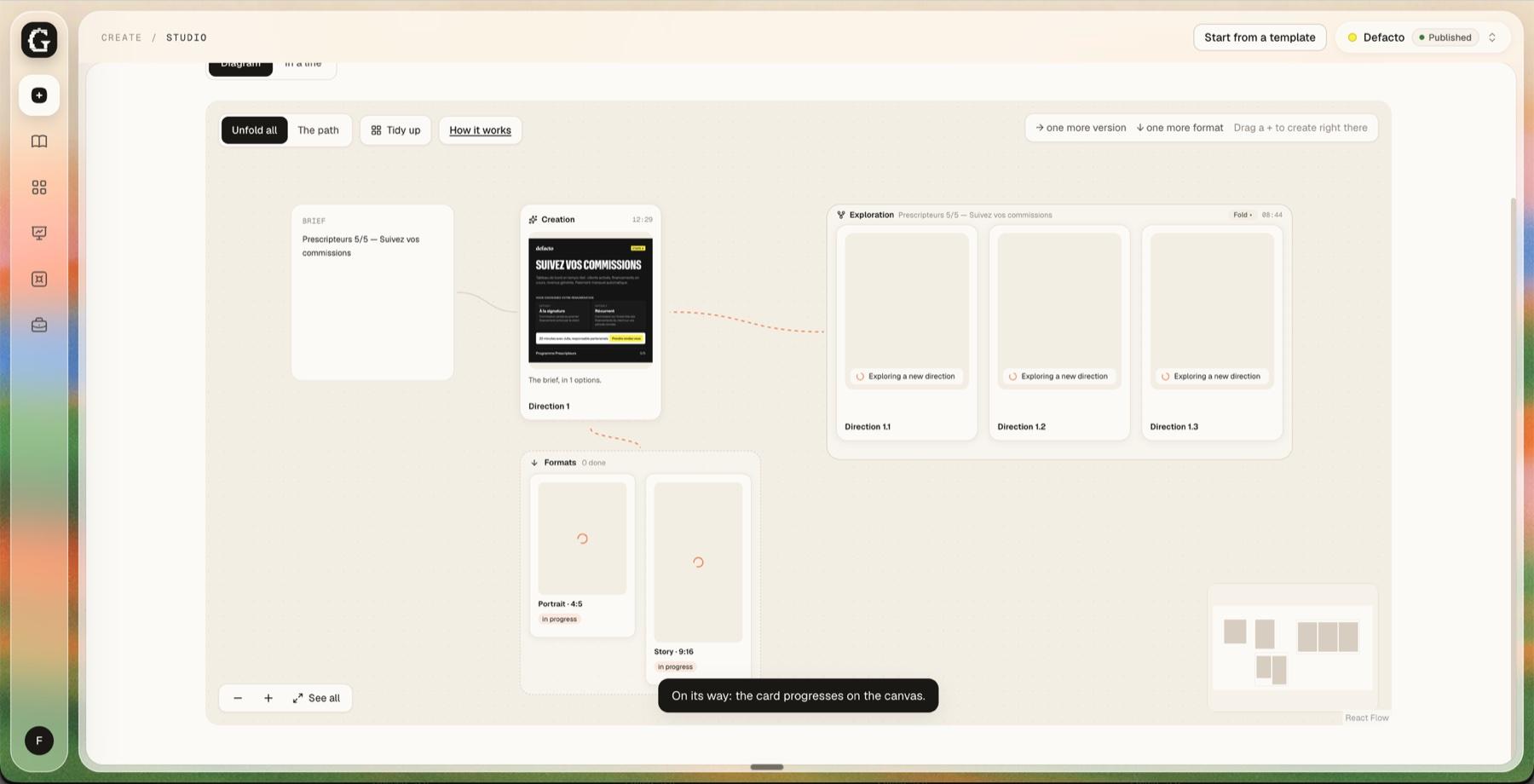
In Graphist, editing an earlier version now automatically opens a new branch. The original creation line stays intact, allowing both tracks to evolve side-by-side. You can develop v1 further without ever affecting v4.
This is the core practice we recommend, regardless of the tool you use. If your software lacks native branching support, consider duplicating your file or conversation before exploring a backtrack, and give the duplicate a clear name.
Rule #2: Versions move right, formats flow down
To keep your workflow seamless, everything is mapped onto a visual canvas: version iterations progress horizontally to the right, while format variations expand vertically downward. Every step clearly displays all available options. You can pan, zoom, and reorder cards easily, with all dependent elements following naturally.
Formats corresponding to a specific version are now neatly grouped in a dedicated frame. Requested formats that haven't been generated yet appear as ready-to-trigger placeholders. At a glance, you know exactly where you stand.
Rule #3: Every visual must trace back its origin
One of the most pressing needs expressed by our users was immediate clarity on where each visual came from. On the canvas, simply clicking a card highlights its entire path—from the initial prompt to subsequent edits and derivative formats. The rest fades into the background so you can focus on the essential.
This brings tremendous comfort during the creative phase, as well as when submitting work for review: you always know precisely which version birthed the final asset.
Rule #4: Tweak a format directly, return to the parent version for a concept change
A specific format (such as a story derived from a main post) can be refined via text prompt or edited manually, but it isn't meant to become the starting point for a brand-new global concept. If the overarching idea needs to pivot, the tool guides you back to the parent version.
This deliberate methodological choice avoids entangling two distinct problems: testing the strength of a visual concept on one hand, and adapting it to a specific format on the other. It's the secret to keeping your workspace clean and understandable.
What’s available today, and what’s next
This new canvas-based tree view is already live in Graphist. On your first login, a brief interactive guide walks you through the basics (and the classic list view remains available if you ever want to switch back).
We are continuing to refine the experience: we are currently working on a streamlined single-line summary view and even more direct access to manual editing tools, clearly separated from AI prompts.
In summary: key takeaways to stay in control
Regardless of your daily toolset, three simple habits make all the difference: make a named duplicate before backtracking, generate formats off a validated master version, and always head back to the root parent version whenever you want to explore a new creative direction.
Read next: Building a reliable design agent, from brief to approved asset.